Private Docs
This guide shows you how to make a Docs site private and use access groups to choose who can view it. You can set this up in the dashboard and editor, or in your scalar.config.json.
Make sure you have created a Scalar Account & are logged in (see create account guide)
Create your first access group
Access groups decide who outside your team can view a private site. Creating one needs the Pro plan or above.
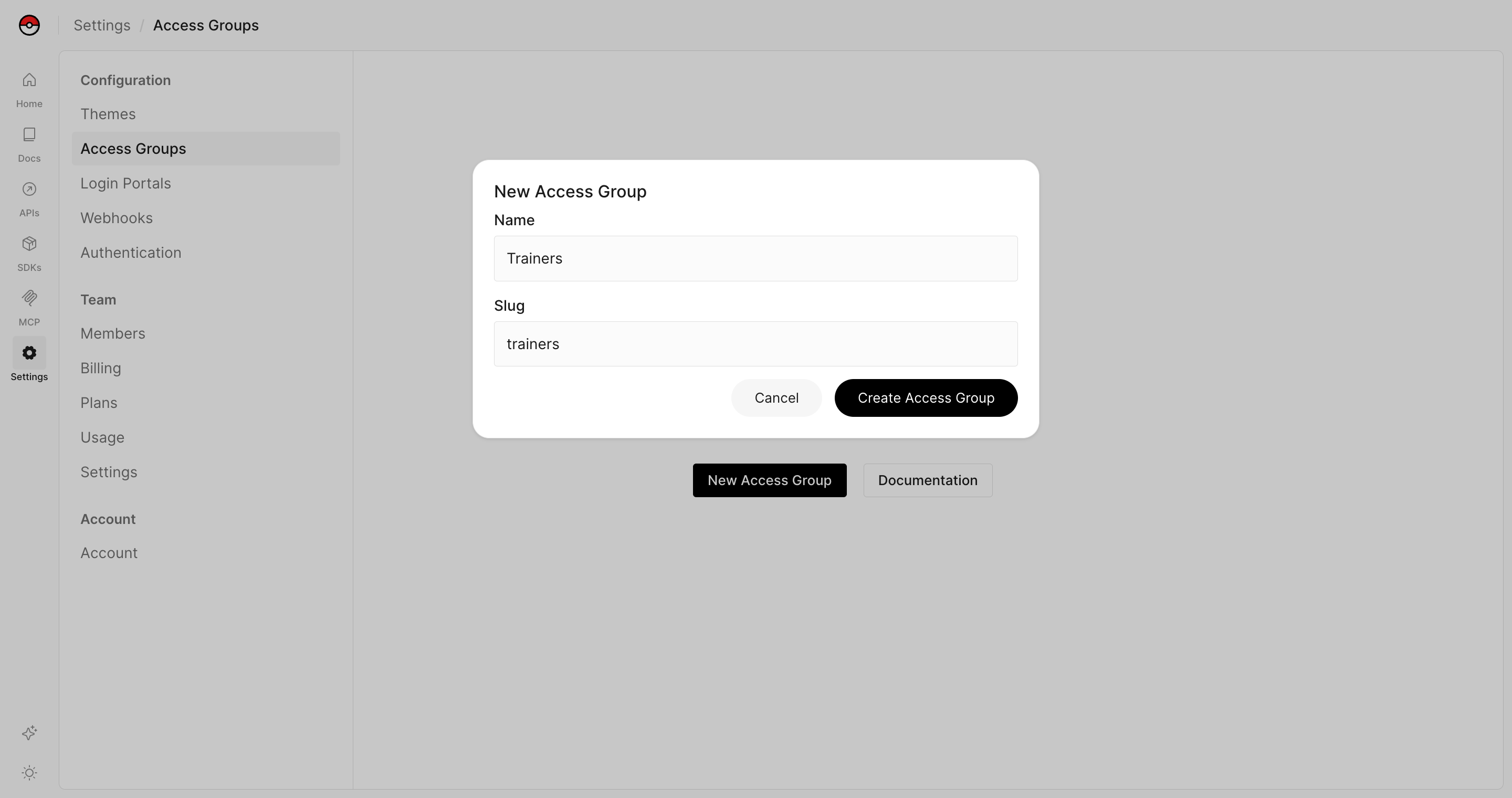
In the dashboard, open Settings and go to Configuration → Access Groups. Click New Access Group, give it a name and a slug, then click Create Access Group.
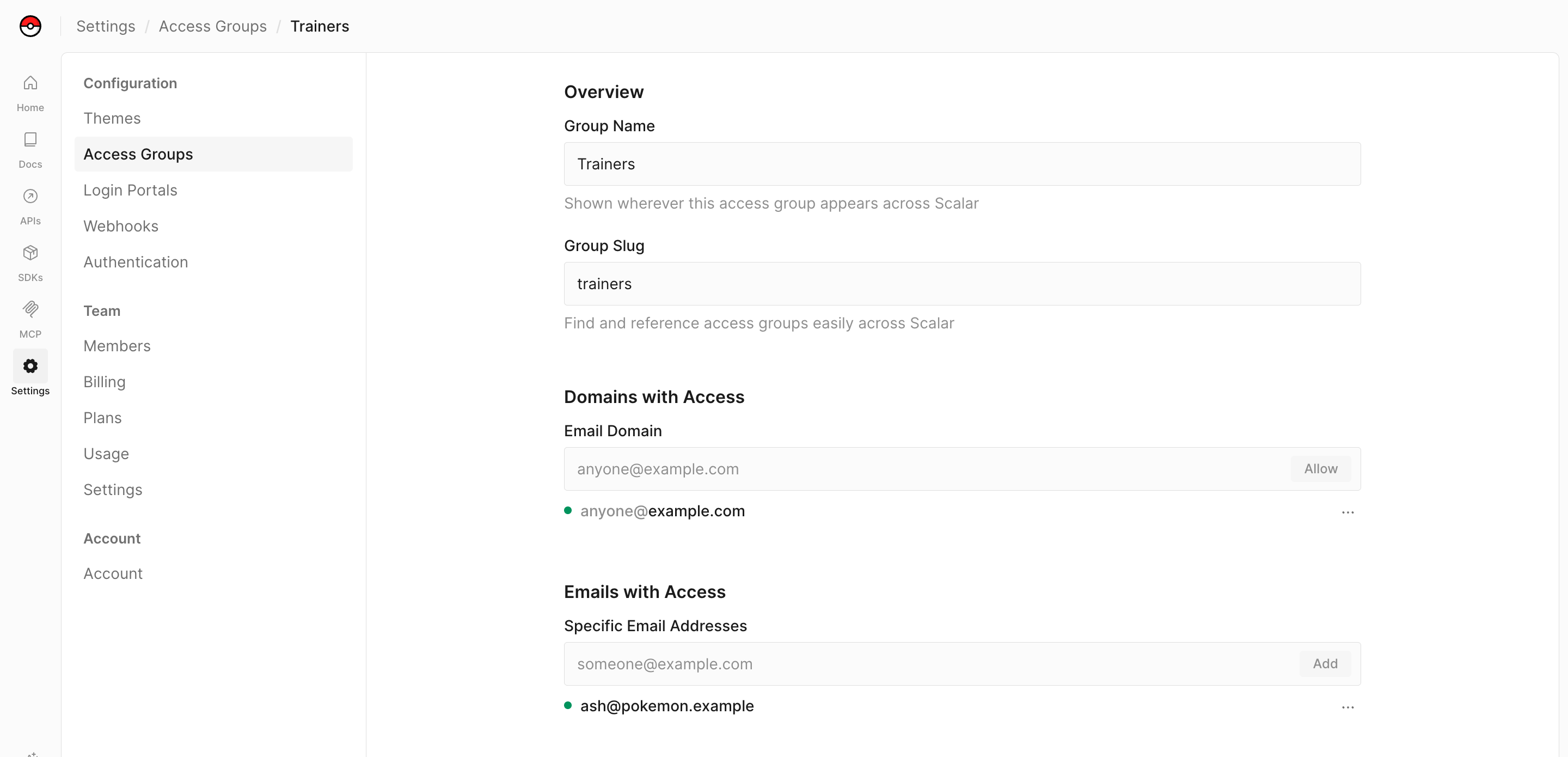
Now that you have an access group, you can allow a whole email domain, specific email addresses, or both.
Allow an email domain
Under Email Domain, type a domain like example.com and click Allow. Anyone with an address at that domain can sign in.
Allow specific email addresses
Under Specific Email Addresses, type an email address and click Add.
Make your docs private
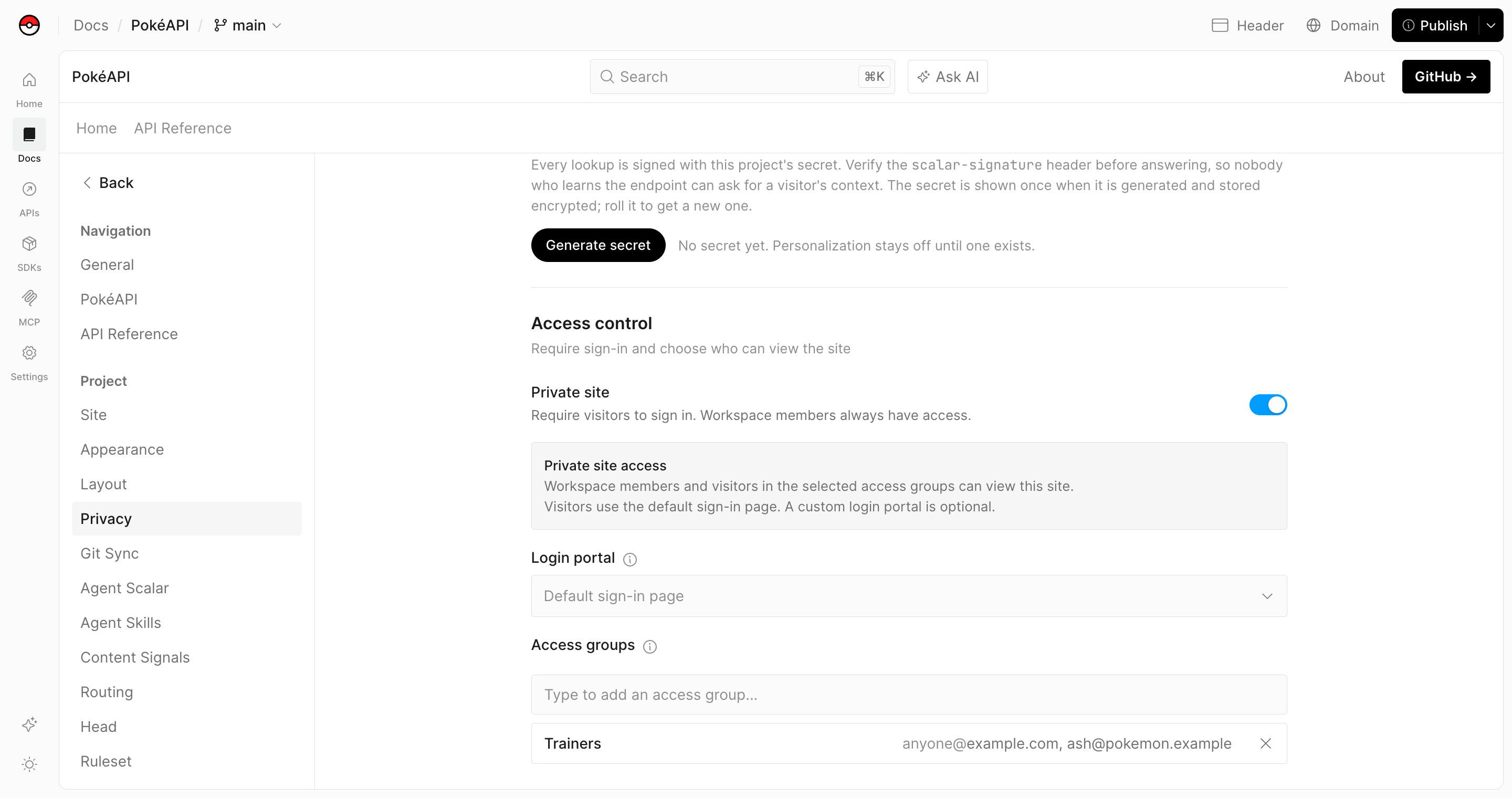
Open your Docs project in the editor and go to Settings → Privacy. Under Access control:
- Turn on Private site. Visitors now have to sign in, and members of your team always have access.
- Optionally, pick a Login portal to brand the sign-in page. Without one, visitors see the default sign-in page.
- Under Access groups, add the groups that should be able to view the site.
Save and publish your changes for them to take effect. If you delete an access group later, its members lose access immediately.
Configure in scalar.config.json
The Private Docs toggle, access groups and login portal are also stored in your scalar.config.json, so you can set them in your repository:
{
  "siteConfig": {
    "isPrivate": true,
    "accessGroups": ["partners"]
  }
}
See Access Control for every property.
Show pages to specific access groups
On a private site, you can show navigation entries and content only to visitors in certain access groups. When a visitor signs in, Scalar gives them the slug of each of the site's access groups that their email address or domain matches. Use those slugs in groups. You do not need a user-info hook.
To show a page only to the partners group, add groups to its navigation entry:
{
  "siteConfig": {
    "isPrivate": true,
    "accessGroups": ["partners", "internal-team"]
  },
  "navigation": {
    "routes": {
      "/": {
        "type": "page",
        "title": "Welcome",
        "filepath": "welcome.md"
      },
      "/partner-guide": {
        "type": "page",
        "title": "Partner guide",
        "filepath": "partner-guide.md",
        "groups": ["partners"]
      }
    }
  }
}
You can also set the groups in the page's frontmatter:
---
groups: [partners]
---

# Partner guide
An entry is shown when the visitor belongs to at least one of its groups. Entries without groups are shown to everyone who can view the site. Hiding a group in the navigation also hides its children. groups works on pages, links, OpenAPI entries, nested groups and header links. Top-level route sections do not support it. See Filter navigation for the full rules.
To show part of a page to some groups only, use a visible block:
:::visible{groups="partners"}
Partner pricing is listed in your partner agreement.
:::
Only the access groups listed in siteConfig.accessGroups count. A team member who is not in one of those groups by email address or domain does not get its slug, so they do not see entries limited to that group. To check a group's view, sign in with an address the group allows.
groups only changes what appears in the navigation and on the page. A hidden page can still be opened at its URL, and hidden blocks stay in the page source. Search and sitemaps include them too. If some content must be kept from certain visitors, publish it as a separate private site and give that site its own access groups.
What did you think of this content?